Migrating Existing Users to SSO
Single Sign-On is available for enterprise plans. Upgrade your plan to use this feature.
If you use the self-hosted version, you must set up the license and then follow the sso server setup guide to use this feature.
Setting up SSO adds a new way to sign in, it does not convert the accounts your team already has. After you finish the SSO Getting Started guide, everyone who signed up with an email and password, or with Google or GitHub, keeps signing in exactly as before. Only brand new accounts are created through your identity provider.
That is rarely what you want. If half of your team still signs in with passwords, you get none of the central control you set SSO up for. Tolgee offers two ways to close that gap. Each user can migrate their own account whenever they want, or you can require everyone on your organization's email domain to migrate.
What changes when an account migrates
Migration turns a regular Tolgee account into an account managed by your organization. Both migration paths, the voluntary one and the enforced one, produce exactly the same result.
- SSO becomes the only way to sign in. The account password is deleted, and password reset stops working.
- Two-factor authentication is removed. The authenticator secret and all recovery codes are deleted. If you need 2FA, configure it in your identity provider instead, where it now applies to every Tolgee sign-in.
- The user becomes a member of the organization the SSO domain belongs to, if they are not a member already.
- The user cannot join, create, or be invited to any other organization, and cannot be removed from yours.
- The user can no longer change their email address or delete their account.
- The
Account securitypage no longer offers password, 2FA, or provider settings. It shows the noteYour account is managed by {organization}.instead.
The organization bullets above describe Organizations SSO, which is what Tolgee Cloud uses. On a self-hosted server with Global SSO, migration removes the password and two-factor authentication in the same way, but it does not tie the account to any organization. Those users keep their existing memberships and can still create organizations.
Migration cannot be undone from the application. There is no button that converts a managed account back to a regular one, so treat it as a one-way step. This matters most for accounts that rely on 2FA, because the recovery codes are destroyed in the process.
Migrate your own account
Any user whose email domain matches your organization's SSO domain can move their own account at any time, without waiting for an administrator. This is the recommended path when you roll SSO out gradually.
- Click your profile picture in the top right corner and select
Account settings. - Click
Account securityin the left sidebar. - Under
Third-party authentication providers, clickMigrate to SSO. - Authenticate with your identity provider.
- Confirm the change on the
Confirm Authentication Changescreen by clickingGot it.
The button sits below the password and two-factor sections, next to the buttons for connecting Google or GitHub.
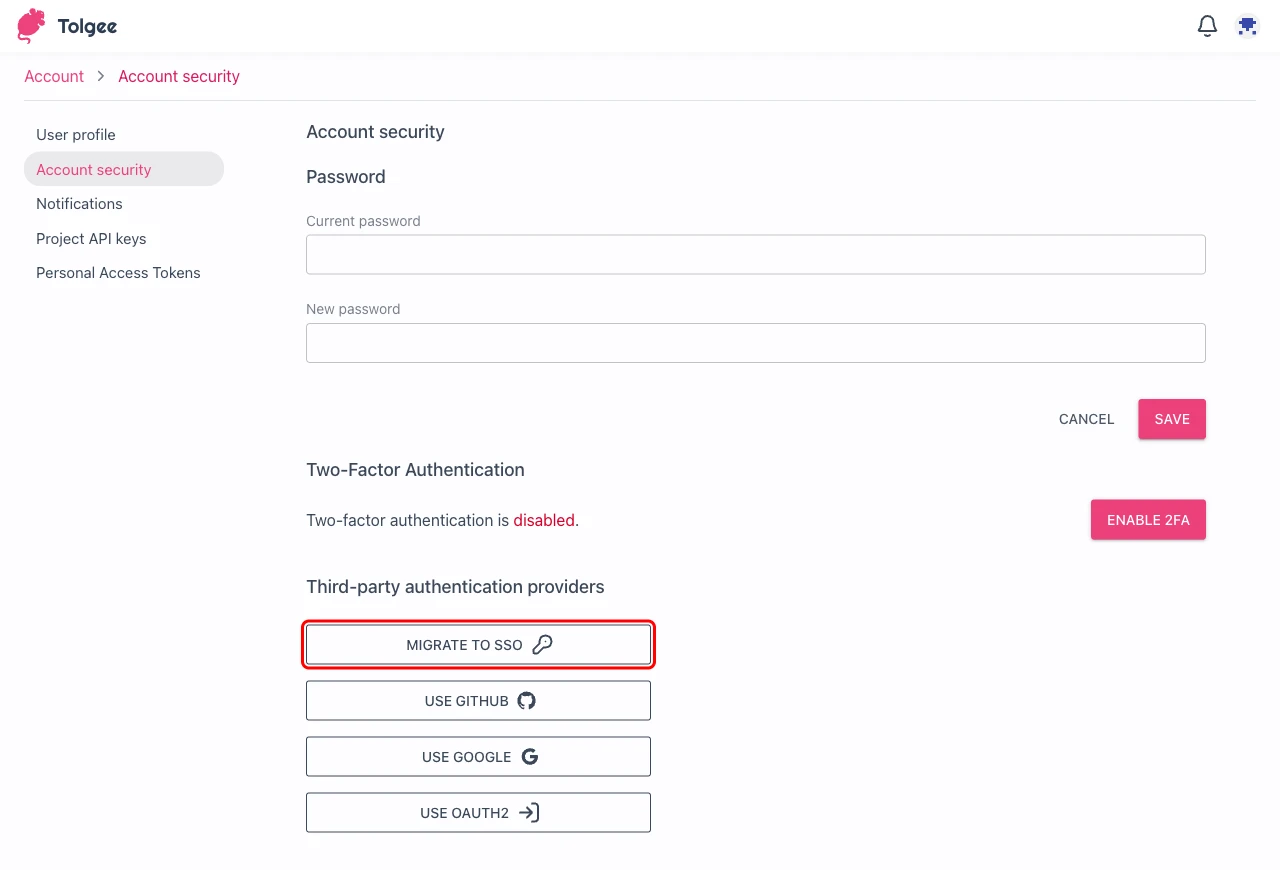
You are signed in through SSO from that point on. The pending change expires 30 minutes after you start it, so if you step away in the middle, start again from step 3.
When the button is missing
The Migrate to SSO button is only rendered when Tolgee can offer a working SSO login for your account. If you cannot
find it, one of the following applies.
- Your account is already migrated. The
Account securitypage shows the note about your account being managed by your organization, and nothing else. There is nothing left to do. - Your email domain has no SSO configured. The domain of your email address must match the domain configured in
organization SSO settings. A user with a
@gmail.comaddress cannot migrate to the SSO ofexample.com. - You sign in with Google, GitHub, or another third-party provider. The
Account securitypage then only offersSet password. Set a password first, which converts the account into a regular one, and theMigrate to SSObutton appears afterwards. Users who are being migrated by force skip this step, see below. - SSO is not enabled on the server. On self-hosted instances, an administrator has to enable it first through the server setup guide.
Enforce SSO for your organization
When you want every account on your domain on SSO, enable enforcement instead of asking people one by one. You must be an organization owner to change these settings.
- Click your profile picture in the top right corner and select
Organization settings. - Click
Single Sign-On (SSO)in the left sidebar to open theSingle Sign-On Settingspage. - Turn on
Enforce SSO for Organization Usersand save the form.
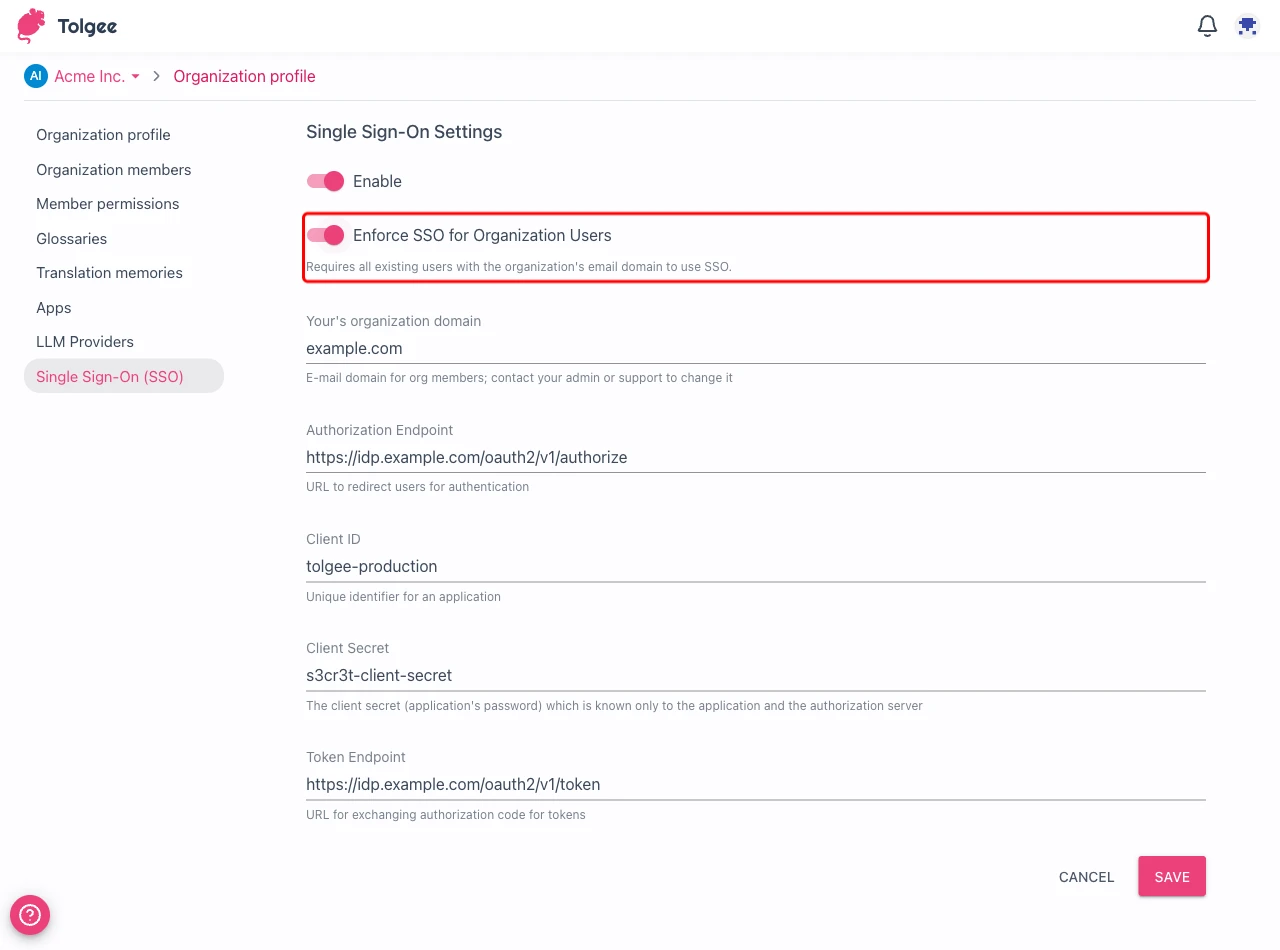
From that moment, every user whose email domain matches your organization's SSO domain must sign in through your identity provider, no matter which login method their account uses today.
What enforced users experience
Users who have not migrated yet are redirected to a migration page the next time they open Tolgee. It tells them that
their organization now requires SSO and that their account will switch to an SSO-only login, and it offers a single
Migrate to SSO button. Until they go through it, the rest of the application stays out of reach, and their
organization menu is hidden.

Enforced migration skips the confirmation screen. As soon as the identity provider sends the user back, the account is migrated and everything described in What changes when an account migrates applies.
Unlike the voluntary path, enforced migration also works for accounts that sign in with Google or GitHub. Those users do not need to set a password first.
Enforcement applies to the whole API, not only to the web application. Requests authenticated with a personal access token or a project API key belonging to a user who has not migrated yet are rejected too. Any CLI usage, CI pipeline, or integration running under such a token breaks until that user migrates, so give your team notice before you turn enforcement on.
Sign-ups on an SSO domain
As soon as SSO is configured for a domain, Tolgee stops creating new accounts on that domain through any other method,
even when enforcement is off. Someone signing up with an email on your SSO domain, whether with a password or through
Google, is turned away with the message SSO is required for your email domain - please use SSO to sign in.
Enforcement therefore only decides what happens to accounts that already exist. New users always arrive through your identity provider.